
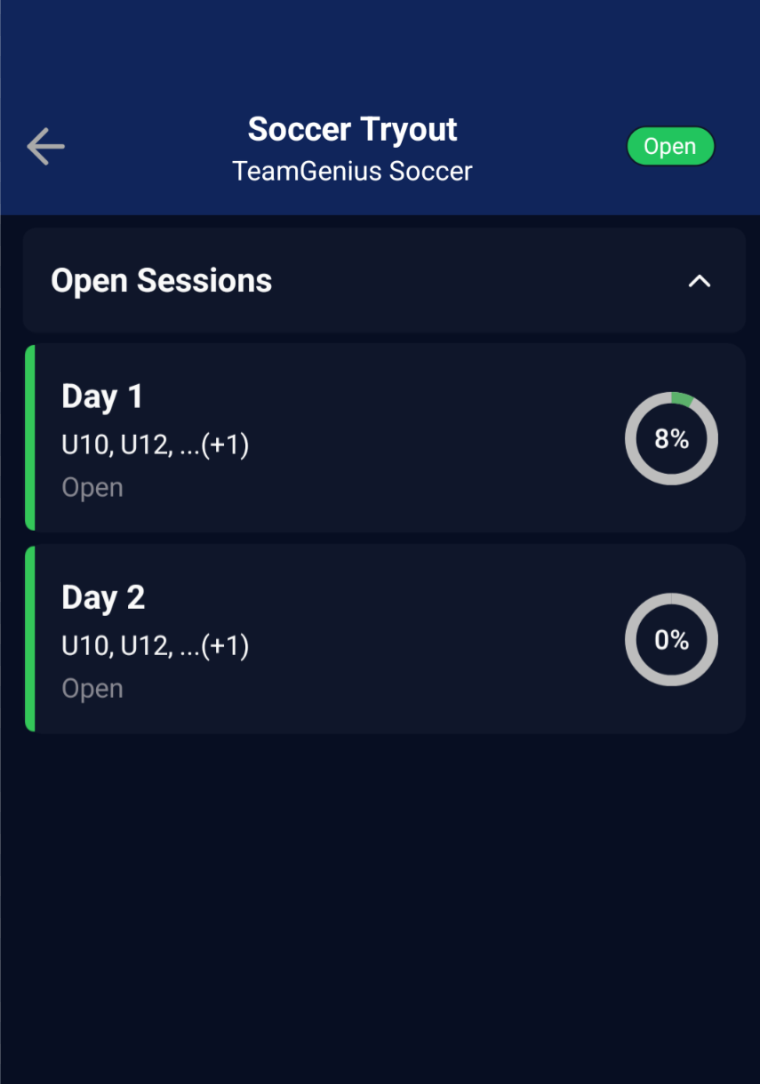
Now that you have successfully logged into the assessment, you'll either see a window asking you to confirm the Evaluation Session, or you will be routed directly to the Player selection page. Your route is dependent on the Access Key you are given.
If you see the list of available Evaluation Sessions, confirm you are selecting the correct one based on the directions given to you by your organization. You will only see the sessions open at the time of entering the app. Click on the session name to enter it for scoring.
Player filtering options:
Now that you are on the Player selection page, there are a number of filters you can customize to see the exact players you need to score. Below, we'll dive into each option.
Filtering by Player Pool
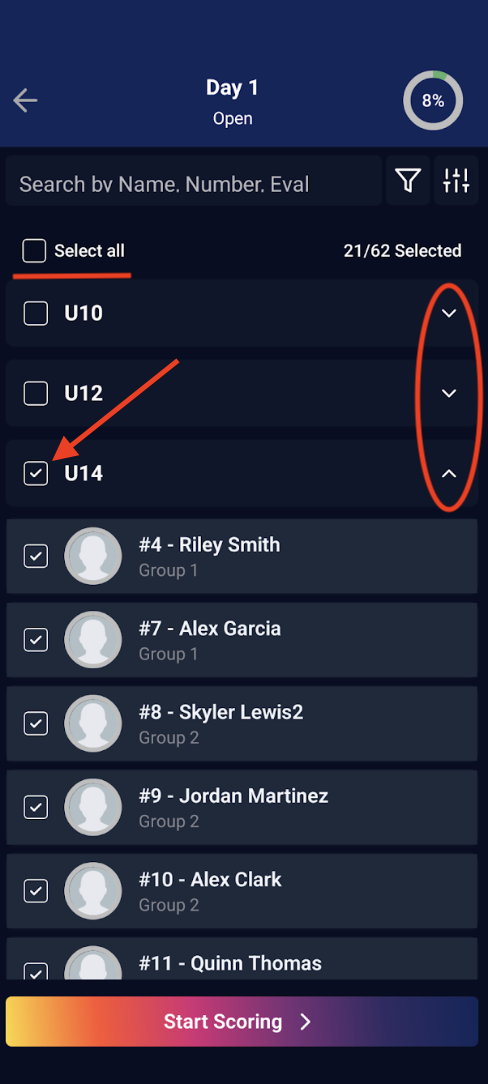
If the Access Key you are using gives you the ability to score on more than one Player Pool, you'll see all of the available Player Pools expanded on the selection page. You can collapse each Player Pool by clicking the arrow to the right of the Player Pool name. Check the box to the left of the Player Pool name to select all of the players in that pool to score. You can also select all the players across all the available Player Pools by checking the "Select All" box. Clicking on the "Filter" icon to the right of the search bar will also show you the available Player Pools to select quickly.
*Note - You are able to uncheck the box next to any player in a Player Pool that you do not wish to score. By default, the app will select all of the available players when you check the box for the Player Pool.
Filtering by Eval Group
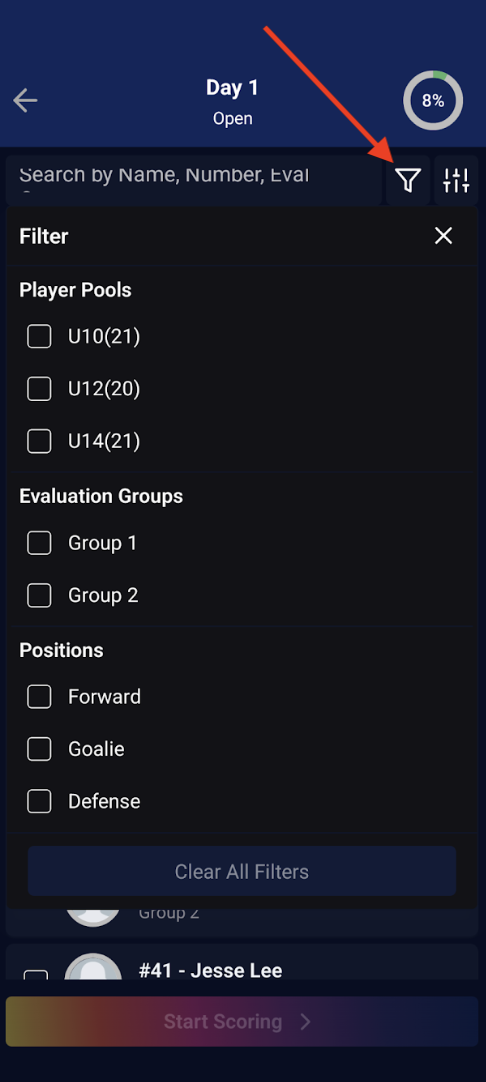
If your organization is using Eval Groups to segment players, click on the "Filter" icon to the right of the Search field. You'll see the option to check the box for one or more Eval Groups.
*Note - If you are looking for one Eval Group within a Player Pool, make sure you also check the box next to the Player Pool name as well. This will limit your list to the players in that Player Pool and Eval Group vs showing you all of the players with that Eval Group name across all of the Player Pools.
Filtering by Position
If your organization has a Position listed for players, you can also filter by this as well. Click on the "Filter" icon to the right of the Search field. You'll see the Position filter options here.
Searching for a Player
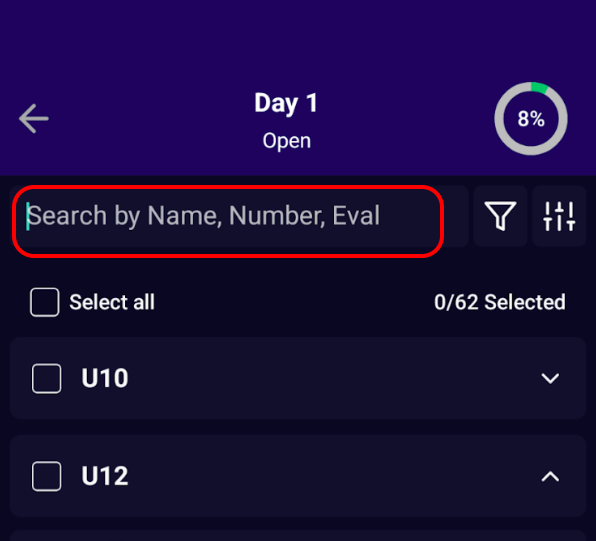
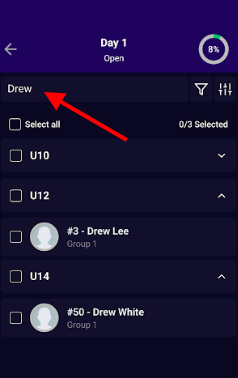
If you only need to score a few players vs all of the players in a Player Pool or Eval Group, you are able to use the Search bar at the top of the Player Selection page. Here you can search for a player by their Name or Number. You can also use the search bar to find any player with an Eval Group assigned to them by searching for the Eval Group name. Once you've found the player, check the box to the left of their name/number.
Sorting Players:
Once you have your players filtered down to those you want to start scoring, you are able to sort them by a number of options. Click on the "Sorting" icon to the right of the "Filter" icon.
- Player Number - Sorts players from lowest to highest number
- Position - Sorts players by position alphabetically (A-Z)
- Eval Group - Sorts players by eval group name alphabetically (A-Z)
- Player Name - Sorts players by first name alphabetically (A-Z)
*Note - The default setting is for the app to sort players by player number (lowest to highest)