To get access to your association's evaluation, you'll first need to download the TeamGenius mobile app. The app is free to download on iOS and Android devices. You can use the app on a phone or tablet depending on your preference.
Download the app using the links below:
Once the app is downloaded, open it up on your preferred device.
From there, you will see 3 fields:
- Name - Input your first and last name
- Email - Input your email address
- Access Key - This is a unique key for the evaluation that will be provided to you by the association
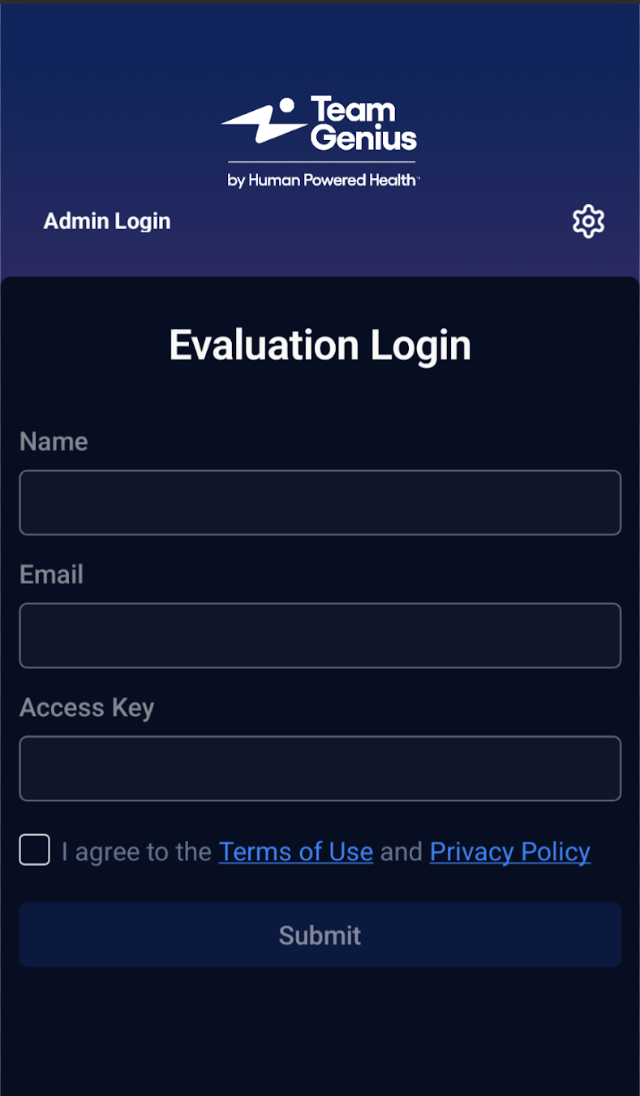
*Note: If this is your first time logging into the app, you'll need to check the box to acknowledge the Terms of Use and Privacy Policy. You will see links to review both documents in the mobile app.
The system will automatically remember your Name and Email address going forward. It will also keep track of any Access Keys used so you can easily jump back into the evaluation if needed.
*Note: You are able to edit the Name and Email field if desired by signing out of the, though we recommend keeping it consistent for all evaluations. This will make the scores easy to track by evaluator.
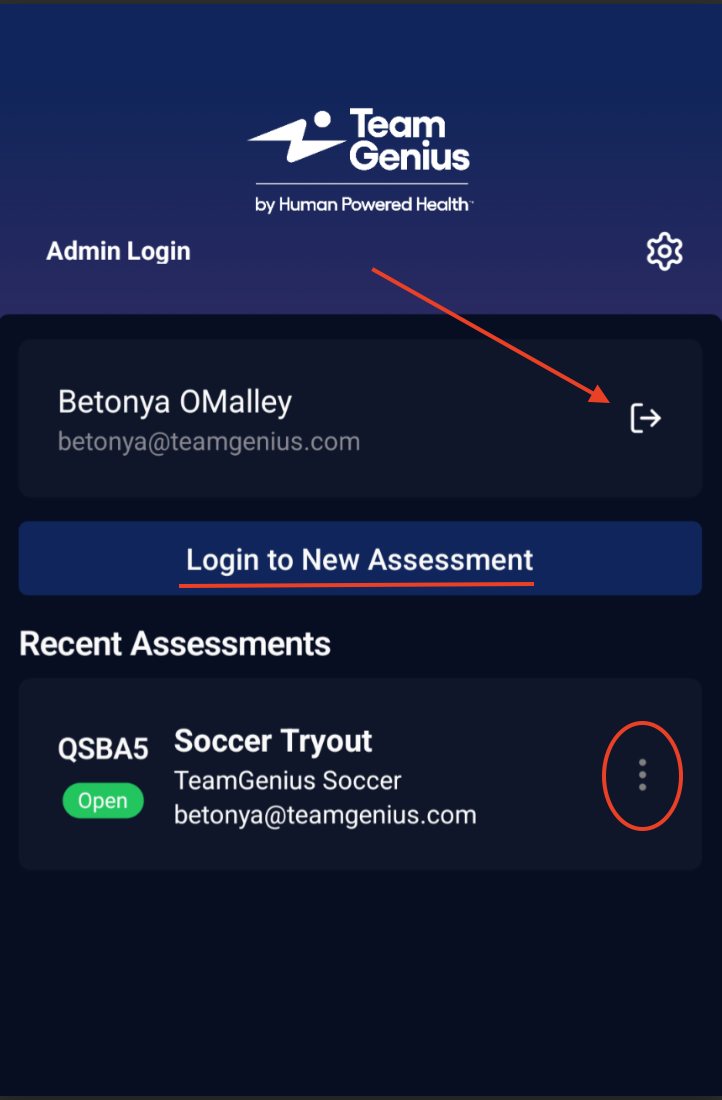
To sign out of the app, click on the icon to the right of your name/email address. A sign out confirmation pop up will appear for you to confirm you'd like to sign out or cancel to remain signed in.
To remove a previously used Access Key, click on the 3 vertical dots to the right of the Access Key details, then click Remove.
To score on a new assessment, click on the Login to New Assessment button. You'll then see a new page to enter your Access Key for that assessment.