
**Important note: This is a Pro tier feature which allows evaluators to take a photo or video and attach it to a criteria for a player. It also allows evaluators to upload a photo or video from their device to a criteria for a player.
The Media feature is a great way to provide additional context to a score given to a player. Evaluators are able to take a photo or video of the athlete which performing a task and attach it to the player's score card. This feature also allows evaluators to attach a previously taken photo/video or file to the player's score card.
To access this feature, make sure you are in the scoring view on the mobile app.
Click on the "camera" icon under the scoring item or player to open up the Media page.
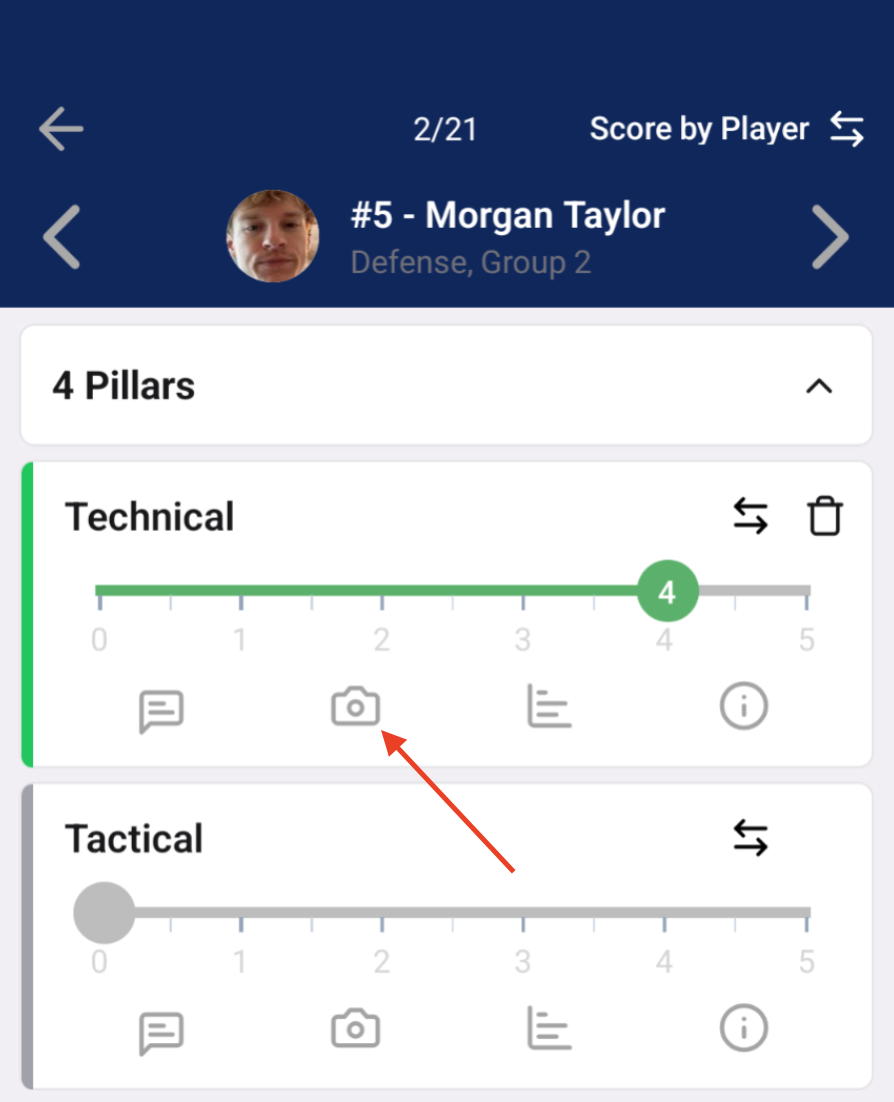
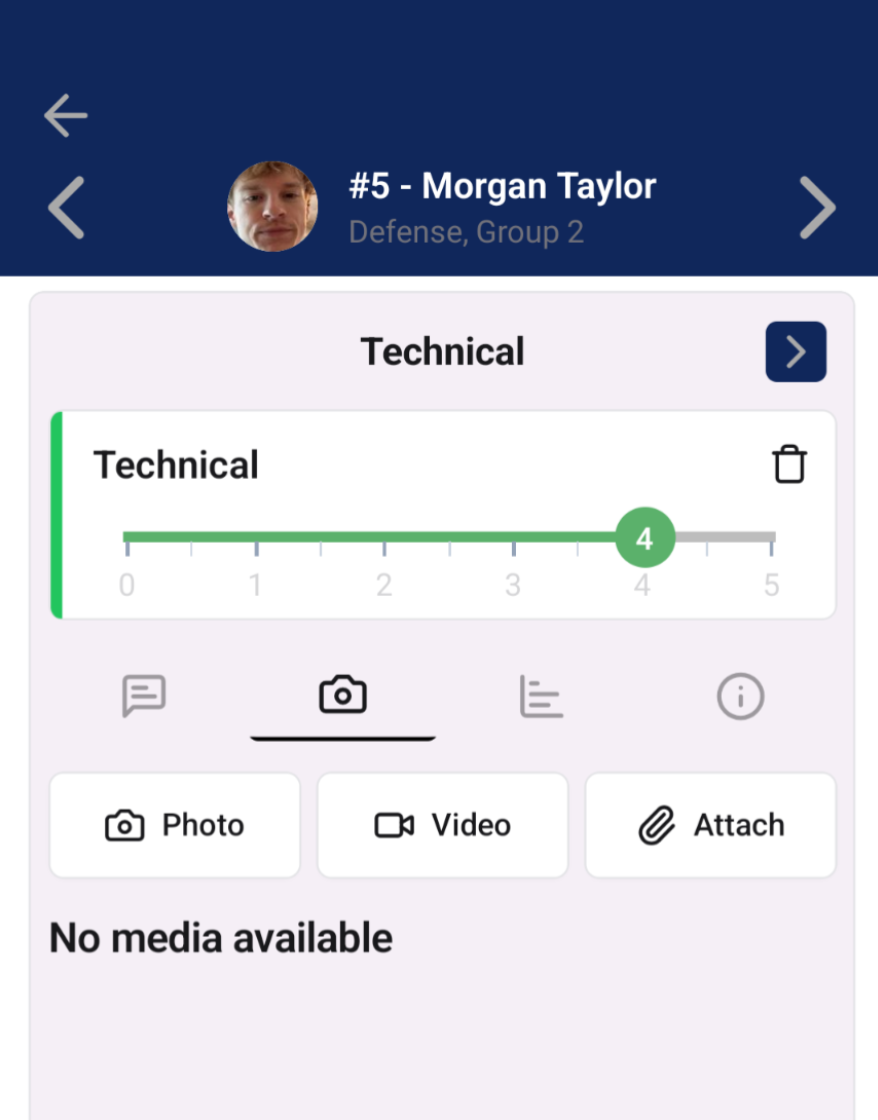
You will see the following options:
- Photo - Click this button to open up your device's camera. You can now capture a photo. Click on the green check button to attach the photo to the criteria you are scoring for a player.
- Video - Click this button to open up your device's camera. You can now capture a video. Click on the video camera to begin recording. Click the "stop" button when you are finished. Now click on the green check button to attach the video to the criteria you are scoring for a player.
- Attach - If you have an existing photo or video you wish to attach to the player's score card, you can do that here. Once you click Attach, it will open up your device's media library. Click on the photo or video you wish to attach then click the "Done" button.
You are able to delete any photos/videos/attachments by clicking on the item then clicking the red trash can icon.