
If you would like to record a comment along with your score in the mobile app, you have the option to do so. Comments are not required though they can be helpful to provide context to the score you've assigned to the player.
First, you'll want to ensure you've reviewed the articles below to access the app and select players to score.
Once you have selected players to score and are on the scoring page, you will see a comment bubble under the scoring input section.
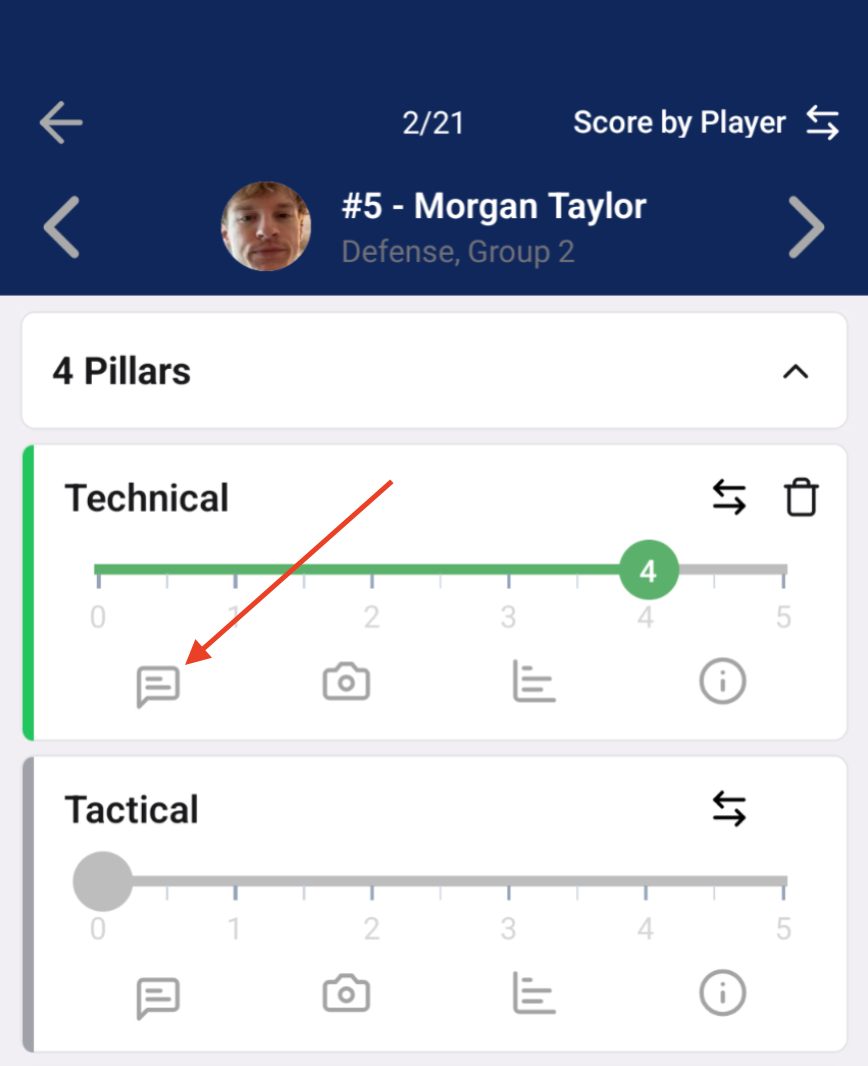
Click on the comment bubble to open up the comment page.
You are able to free form type in the provided comment box to quickly record your feedback. Click Save when complete.
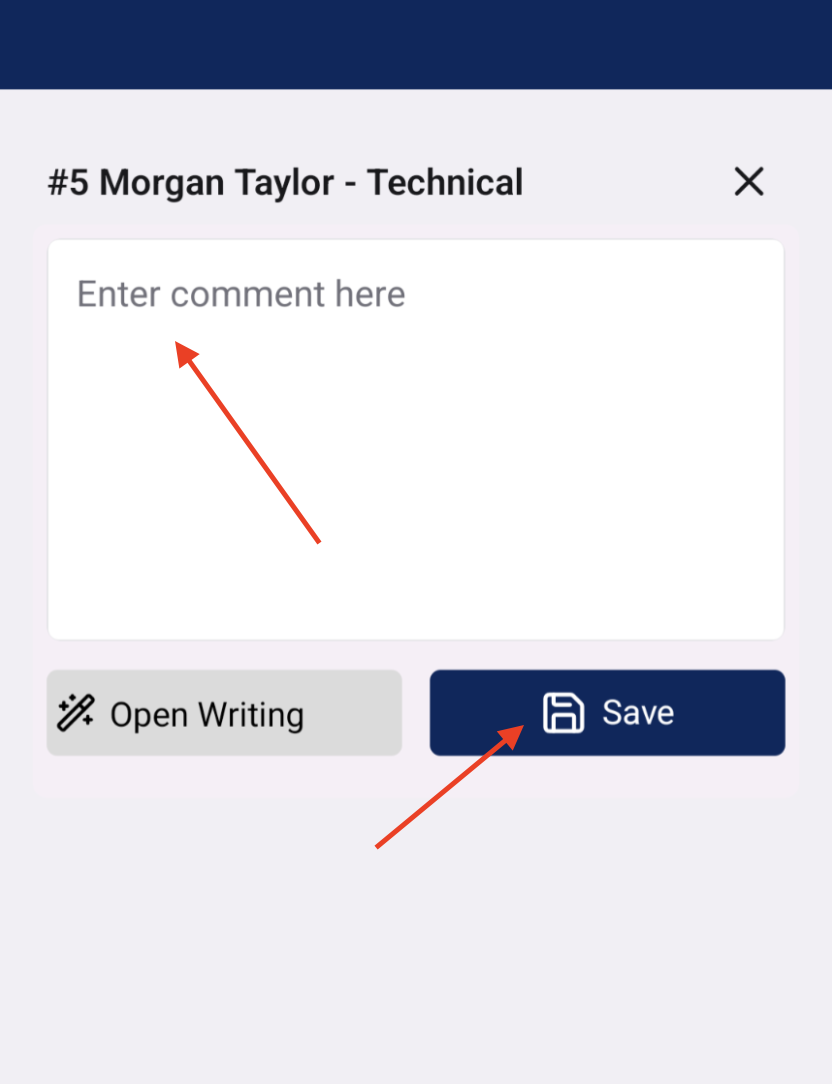
We also have an AI assistant comment feature that allows you to use AI to help to write and clean up your comments. To access it, click on Open Writing.
To use AI to write a comment - Type your notes in the comment box. Clicking on "Generate" will use your notes to record a new comment with AI's assistance.
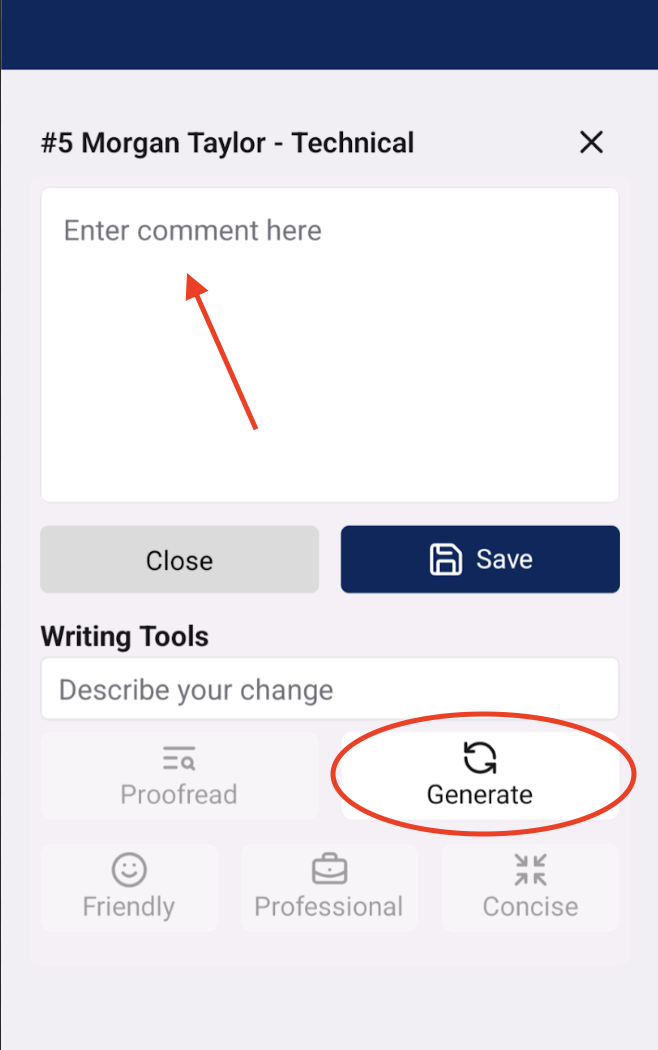
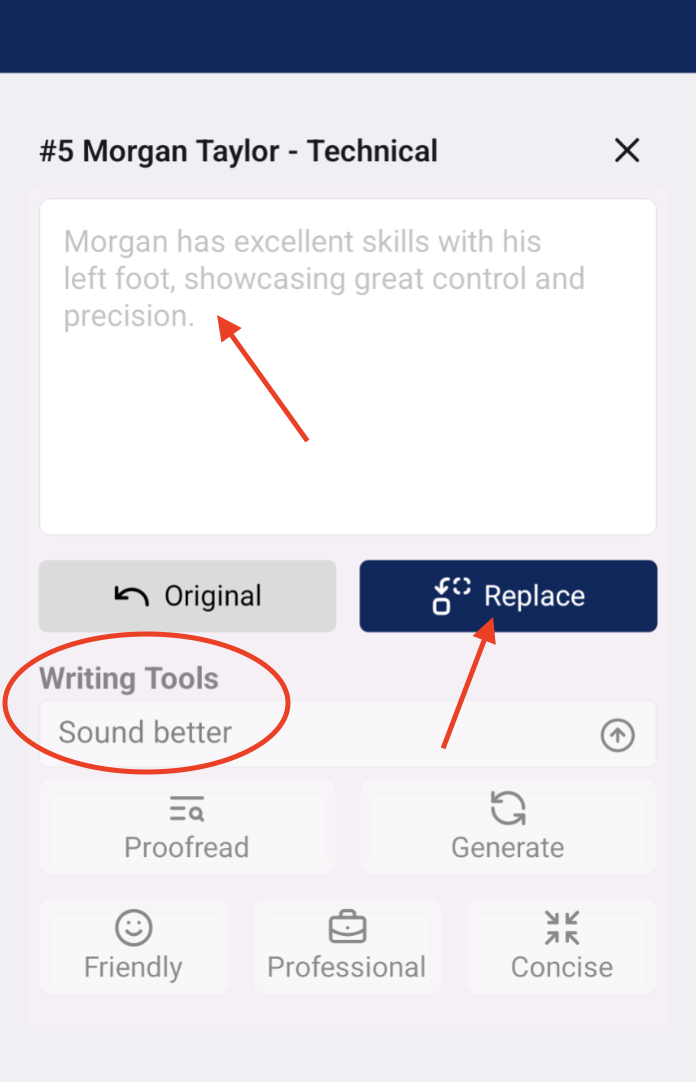
You can also click on Friendly, Professional, or Concise depending on how you want your comment to sound. If you are happy with the AI comment version, click on Replace to update the comment box.
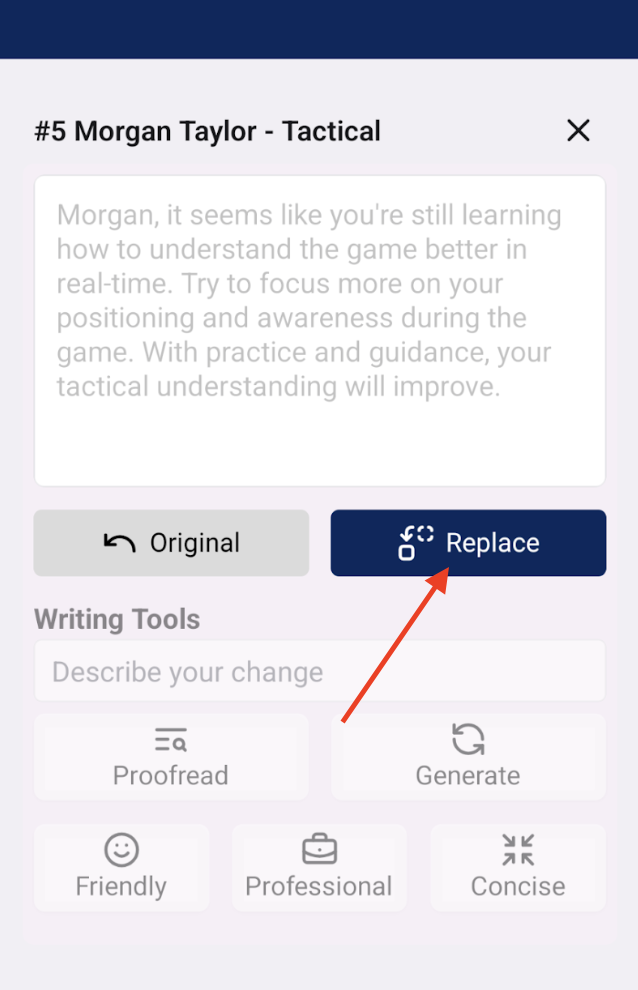
*Note - You are able to edit the AI comment version once you replace it. This allows you to customize it based on your tone.
To use the Proofread feature - Type your notes in the comment box. Click on Proofread to use the AI feature which will clean up your comment. This is helpful if comments will be shared with parents and players.
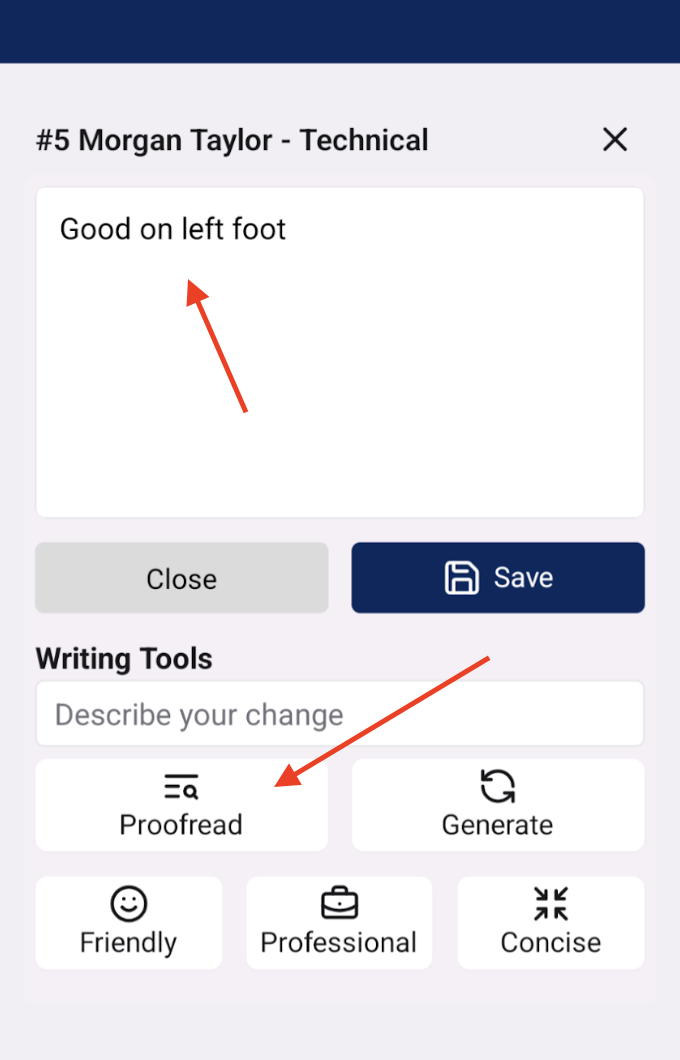
You can also make suggestions for how you'd like to adjust the comment by typing suggestions into the "Describe your change" box.
**Important Note - You must record a score in order for the comments to appear on any reports sent out to parents and players. If you only record a comment, it will not appear on the report.