
Running check-in within the TeamGenius is quick and easy. It's so important to make a good first impression on families, and the check-in desk is an easy way to impress.
To run check-in within TeamGenius, you'll need a computer with an internet connect (wifi or hotspot) or a the TeamGenius mobile app on your phone or tablet. Most people prefer to use a computer since it's a bigger screen, but either works well.
BEFORE TRYOUTS, follow these steps:
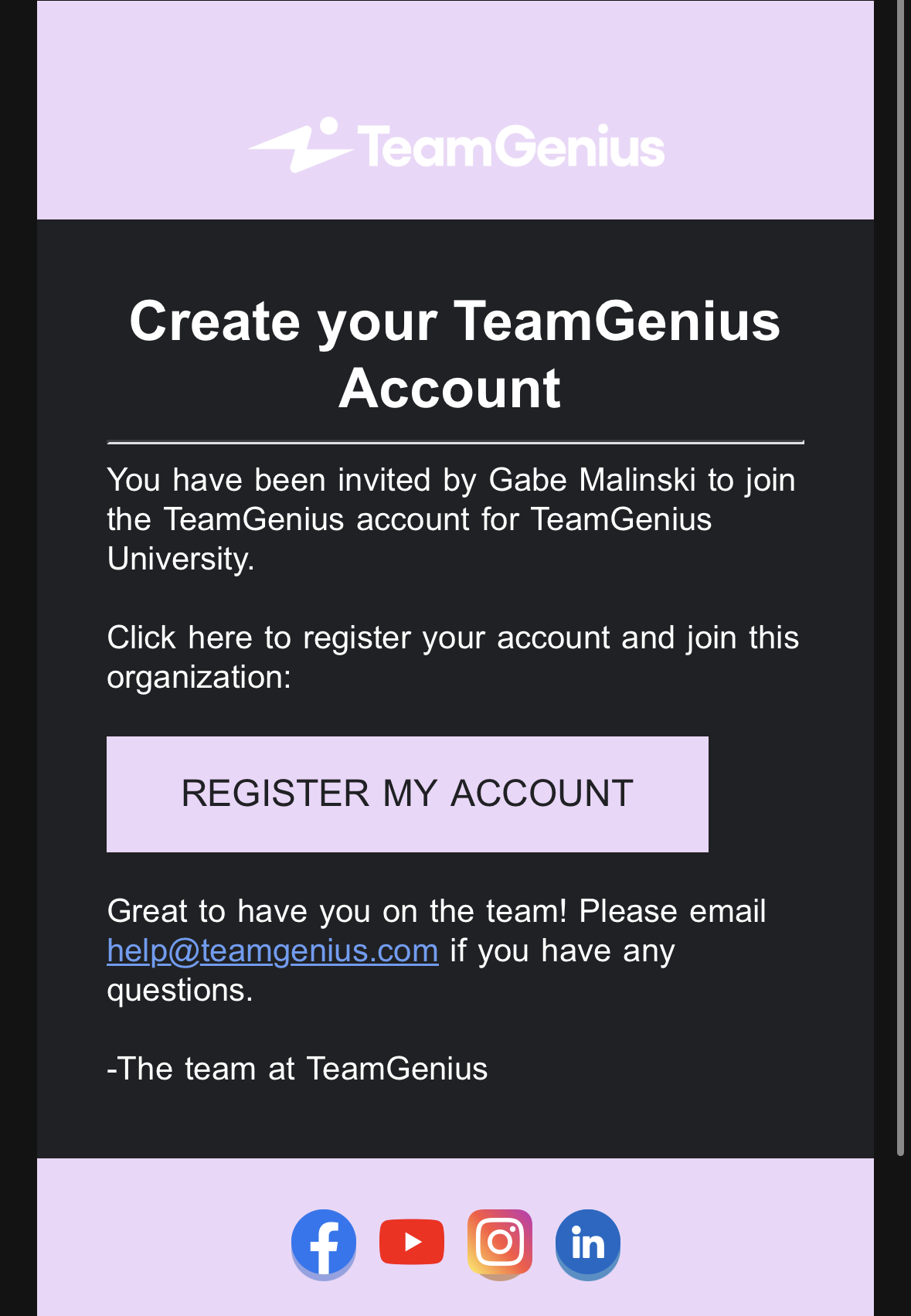
- Get Access to TeamGenius: Your administrator will send you an invite into the organization TeamGenius account. You will receive an email from noreply@teamgenius.com that looks like the image below. Check your spam folder if you don't see it. Invites expire quickly so accept as soon as possible. If you don't have access, send this video to your system administrator so they know how to invite you in.
- Ensure you have the correct level of access by logging in here. You should see any assessment you're responsible for running check-in for on the home page. Click each assessment to ensure you can see the check-in page on the left side. If you don't see all assessments, let your system admin know they may need to invite you to the other assessments.
- Download the TeamGenius Mobile App on your phone or tablet (in the iOS and Android app store) in case you need to go mobile. Log in as an administrator within the mobile app to be prepared for a mobile check-in if needed. This shouldn't be needed, but it's nice to have if your internet (hotspot or wifi) goes down at the tryout. Evaluators don't need internet when scoring, but the check-in team does during check-in.
Player Profile Pictures
If you want to capture profile pictures of players (can be done by anyone with an access key to get into the mobile app), your system admins need to go into your assessment, click settings (in the lower left corner) < advanced settings and check the box labeled "Profile Image Capture". Then, click save at the bottom. Profile pictures are captured (or can be uploaded individually) in the TeamGenius mobile app by anyone who has an access key - evaluators or check-in team. This is usually done at the check-in desk after a player is given their penne/jersey.
WATCH THIS TRAINING VIDEO to learn everything about the TeamGenius check-in system.
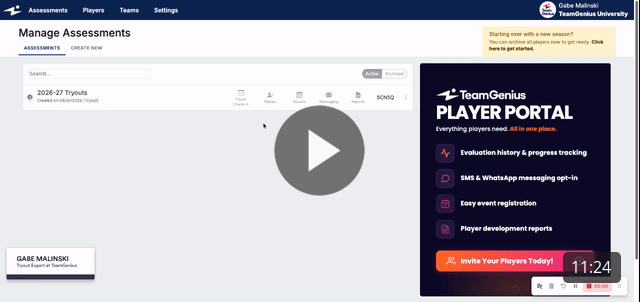
The mobile app looks very similar, but on a smaller screen.
DURING TRYOUTS, follow these steps:
- Login to the TeamGenius - on your computer OR mobile app (never both at the same time or they could overwrite each other)
- Navigate to the player check-in page by going into your assessment, then clicking Players (on the left) < Player Check-in.
- Search a players name when they show up. Click the yellow or green box to the left of their name and assign (or clarify) their player pool and player number. If you are using jersey color, eval group and the "is present" box, be sure to check those boxes too. Any other information
- If you search a players name and it isn't showing up, click the green "Add Player" button in the top right corner to add a player on the fly. Make sure to fill out any information you need and AT LEAST add their player pool, player number and check the "is present" box if you have it enabled.
TIPS:
- If player pool and player number are already assigned, just check the "is present" box, or if you don't see an "is present" column, as long as the assignment column is green, they are checked-in and ready to be scored.
- If a player is trying out for multiple age groups, read the below:
- If they will be scored in both age groups sessions, click the + button to the left of their name and right of their yellow or green assignment to add a second player pool (age group) so they can be scored twice. They will then show up multiple times on the results page with a score comparing them to multiple age groups.
- If they will only be scored in one age groups session, simply ensure their assignment (green or yellow button to the left of their name) is the player pool that they will be showing up to tryout with.
If you have multiple days of tryouts, follow these steps once all sessions have ended for the day:
- Login to the TeamGenius (on your computer) and navigate to the player check-in page.
- To reset attendance for the next day so players not there don't show up in the mobile app:
- If you use the "Is Present" box, click "Reset All Attendance" in the top right corner.
- If you instead want to unassign all player numbers to re-assign them the following tryout sessions, click the select all button in the top left to the left of "Assignment" and under the search bar. An "Update # Assignment" button will appear in blue in the top middle (towards right nearer green Add Player). Click that to bulk Remove Numbers. You can use that to reassign jersey colors if needed as well.
Full Explanation on the TeamGenius Check-In System
In order to show up in the mobile app, a player needs a player pool (age group) and a player number assigned to them.
You assign or update these by clicking the yellow or green player assignment box to the left of each players name.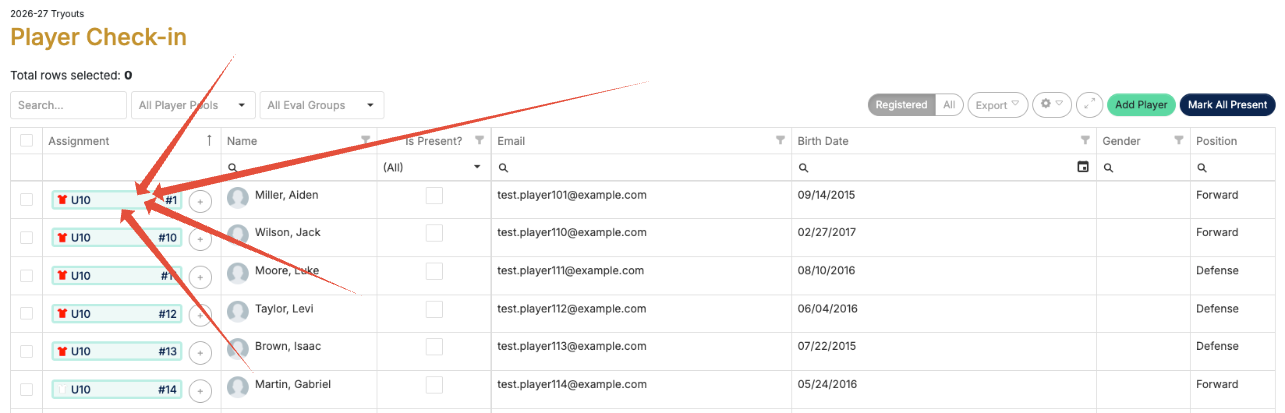 You'll then see a popup where you can add or update any player information.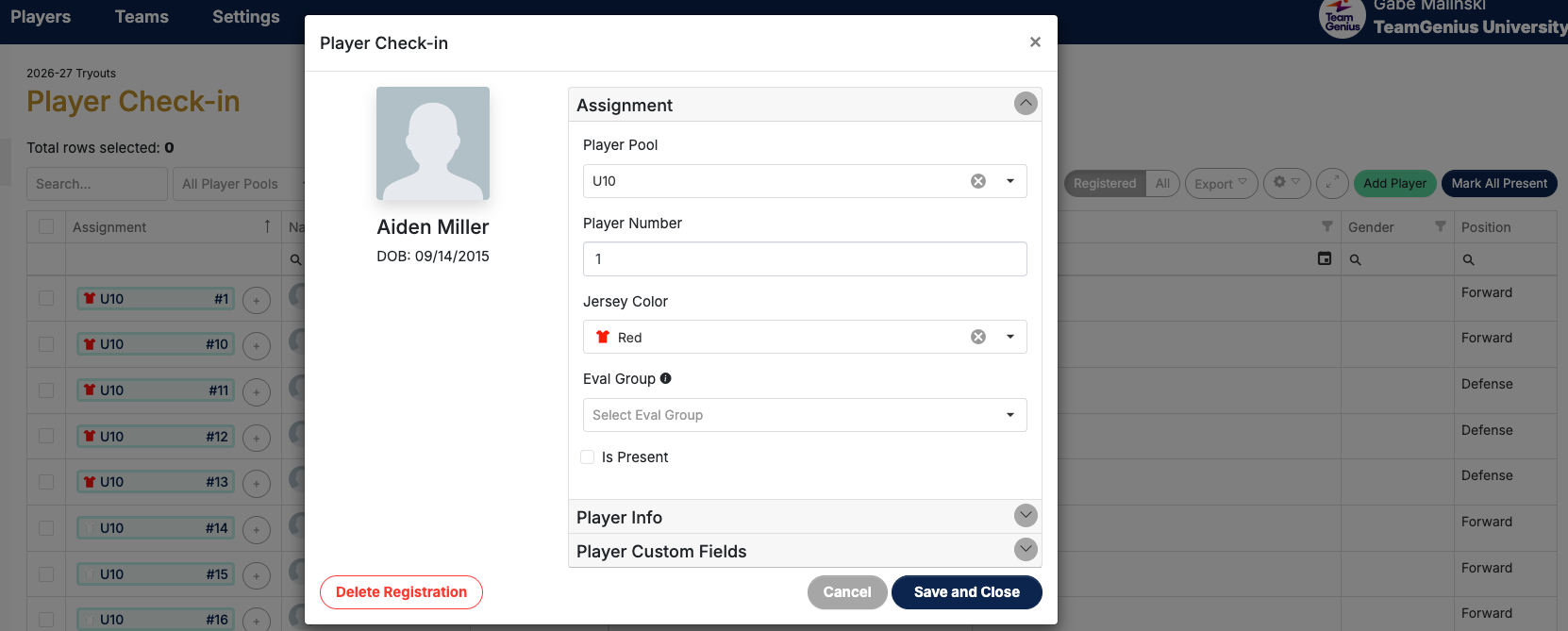
Some organizations have access to and utilize our advanced check-in feature, which simply adds a check box to the check-in screen (as shown below). When enabled, it adds an extra step to check in. Instead of only needing a player pool and player number assigned, you also need to check that box for a player to become "scoreable" in the mobile app.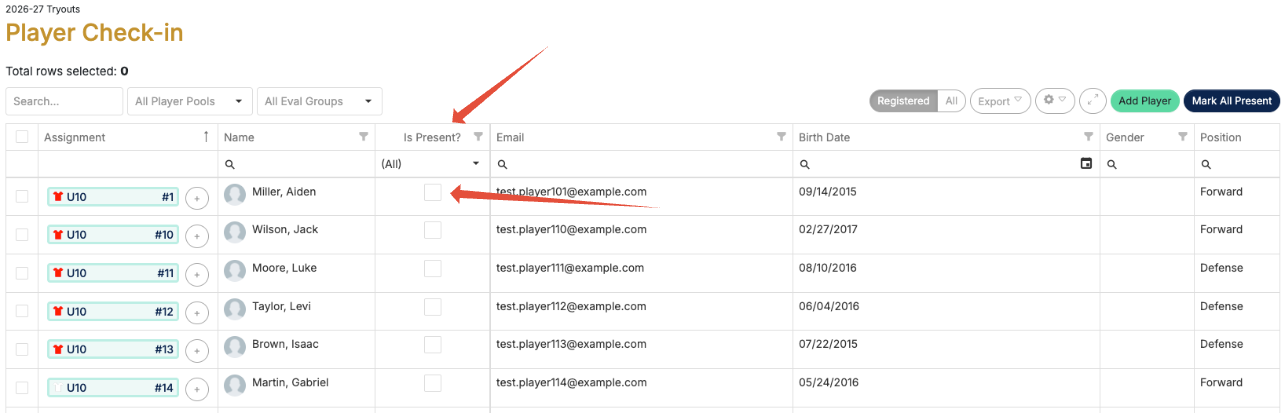 For walkup players who didn't register, click "Add Player" in the top right corner.
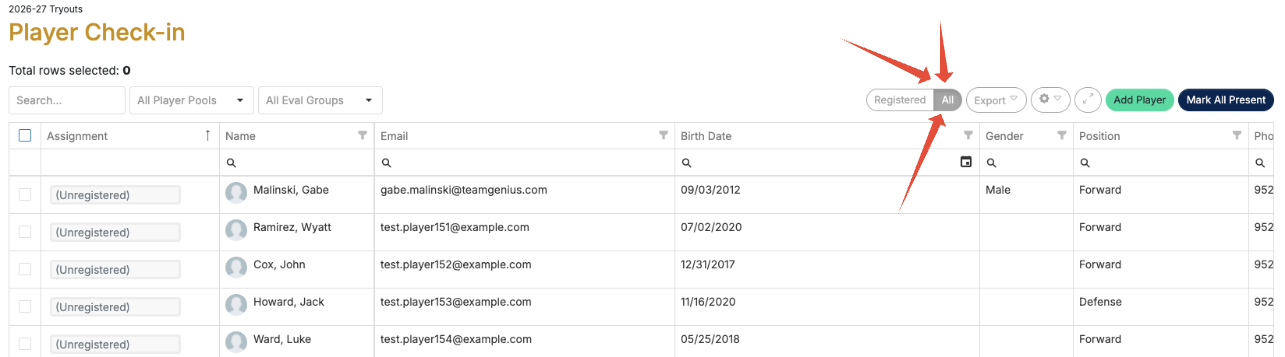
VERY RARE but good to know...if you go to add a player as a walkup player and it says they already exist, go to the ALL tab in the top right corner to the left of the green "Add Player" button, and you will be able to search for players not already in this assessment. Simply click their assignment (it will be grey to the left of their name) and assign their player pool, player number and check the "is present" box.
Next Steps:
Step 2: Registration Setup (optional)
Step 3: Assessment Setup (pre-tryouts)
Step 4: Adding Players (pre-tryouts)
How to Run Player Check-In within TeamGenius
How to Evaluate Players in TeamGenius (coming soon)
How to Shuffle Groups After Tryout Sessions (coming soon)
How to Form Teams (coming soon)
How to Run a Draft (coming soon)
How to Email Teams (coming soon)
How to Send Offers (coming soon)
How to Setup In-Season Evaluations (coming soon)
Start a New Season in TeamGenius: The 4-Step Checklist
Previous Steps:
Start a New Season in TeamGenius: The 4-Step Checklist
Step 2: Registration Setup (optional)
Step 3: Assessment Setup (pre-tryouts)
Step 4: Adding Players (pre-tryouts)