
Now that you've selected your players and scoring forms, you are ready to start scoring!
If you still need to select the players and forms, check out the articles below:
You will initially see the scoring card for the first player based on any filters or sorting you have in place. If you did not adjust the filters on the Player selection page, you'll see the score card for the player with the lowest jersey number.
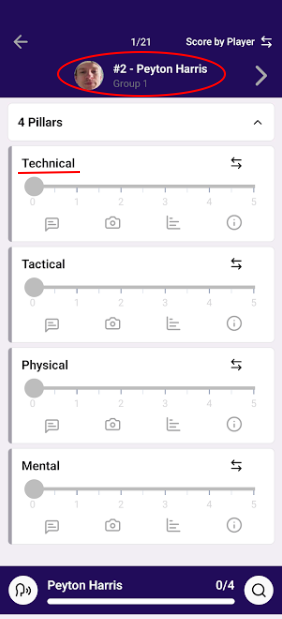
You will see all of the criteria in the scoring form. The criteria names are in bold font (underlined in red in the screenshot below). There are a few input styles your organization can use when setting up the scoring forms. The most common option is to use a Slider Scale option. We'll cover this one first, then will go into the other input options.
Scoring on a Slider Scale -
To assign a player a score, slide the scoring dot to the number you wish to assign the player. Your organization chooses the max score and increment options available to you. As you slide the dot, you'll see the increments. You will also see the max score you can assign a player on the far right.
*Important Note - A zero "0" is a score in the app. If you are wanting to delete a score, click on the trash can icon to the right of the criteria score vs assigning a "0".
Once you record the score, it is automatically saved. You can tell a score has been saved when you see a green line to the left of the criteria box. If the line is gray, then there is no score recorded for the player.
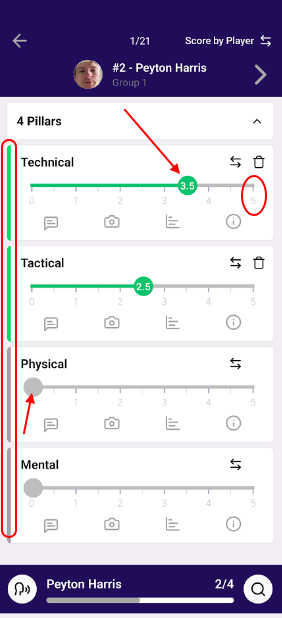
The system will remember your most recent score for that player. You are able to adjust it as needed.
Scoring on a Drop Down Menu -
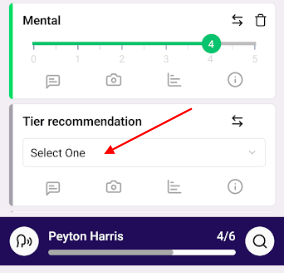
Drop down menus are helpful when the organization has a list of options that are not numerical. If you see a drop down list criteria, click on the box that says "Select One" to see the available options. Once you make your selection, you'll see the green line to the left indicating the score has been saved.
Scoring on a Button Group -
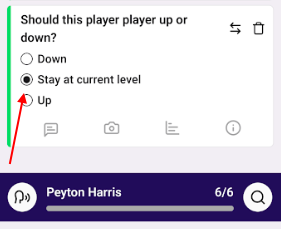
For short word values, your organization might use a button group vs a drop down list or slider scale. Simply click on the choice you wish to assign to the player. You will then see the green line indicating the score has been saved.
Scoring on a timed drill -
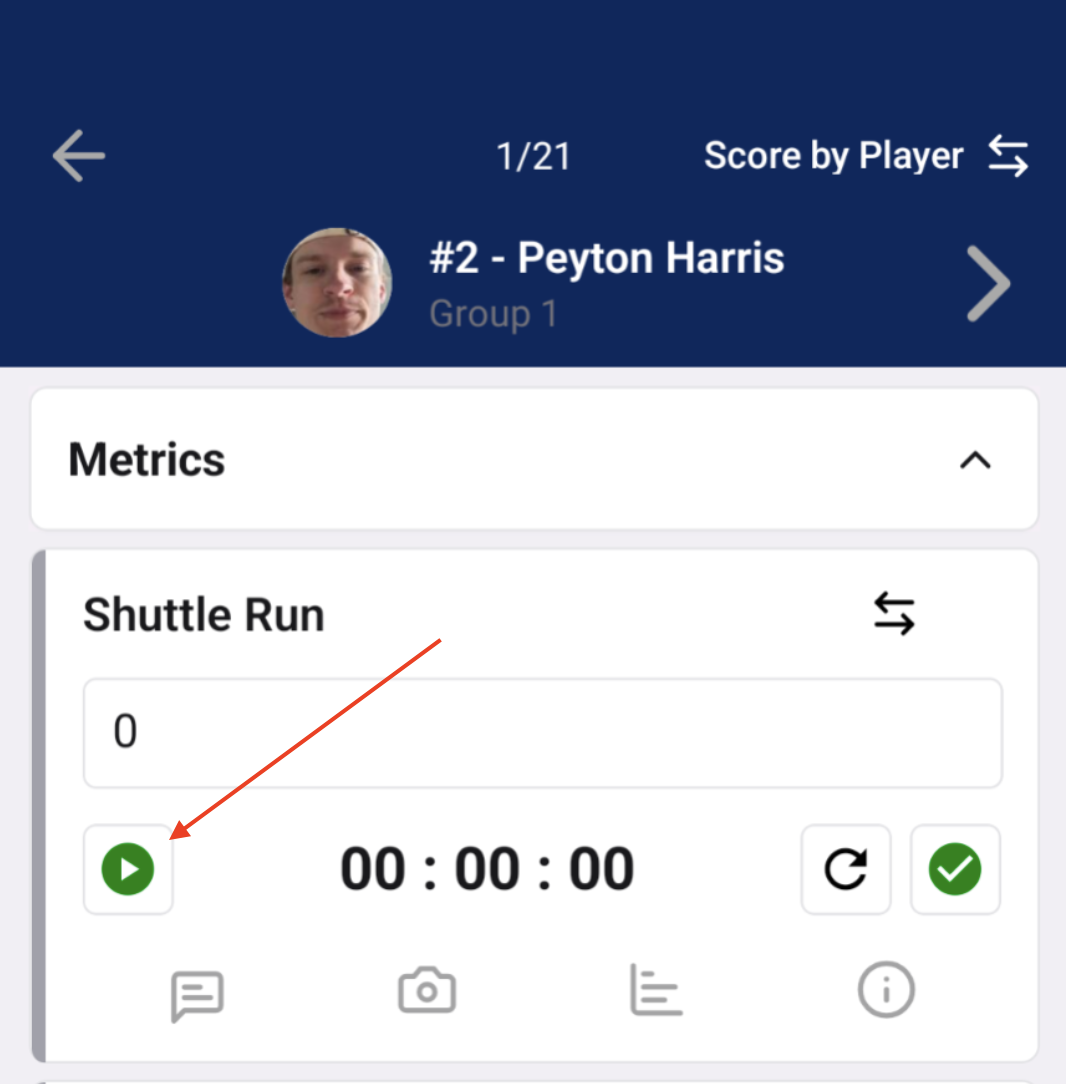
If you have a timed drill, you'll have the option to use the stopwatch feature in the mobile app. To start the timer, click on the green play button (pictured in the screenshot below). To pause the timer, click on the red pause button.
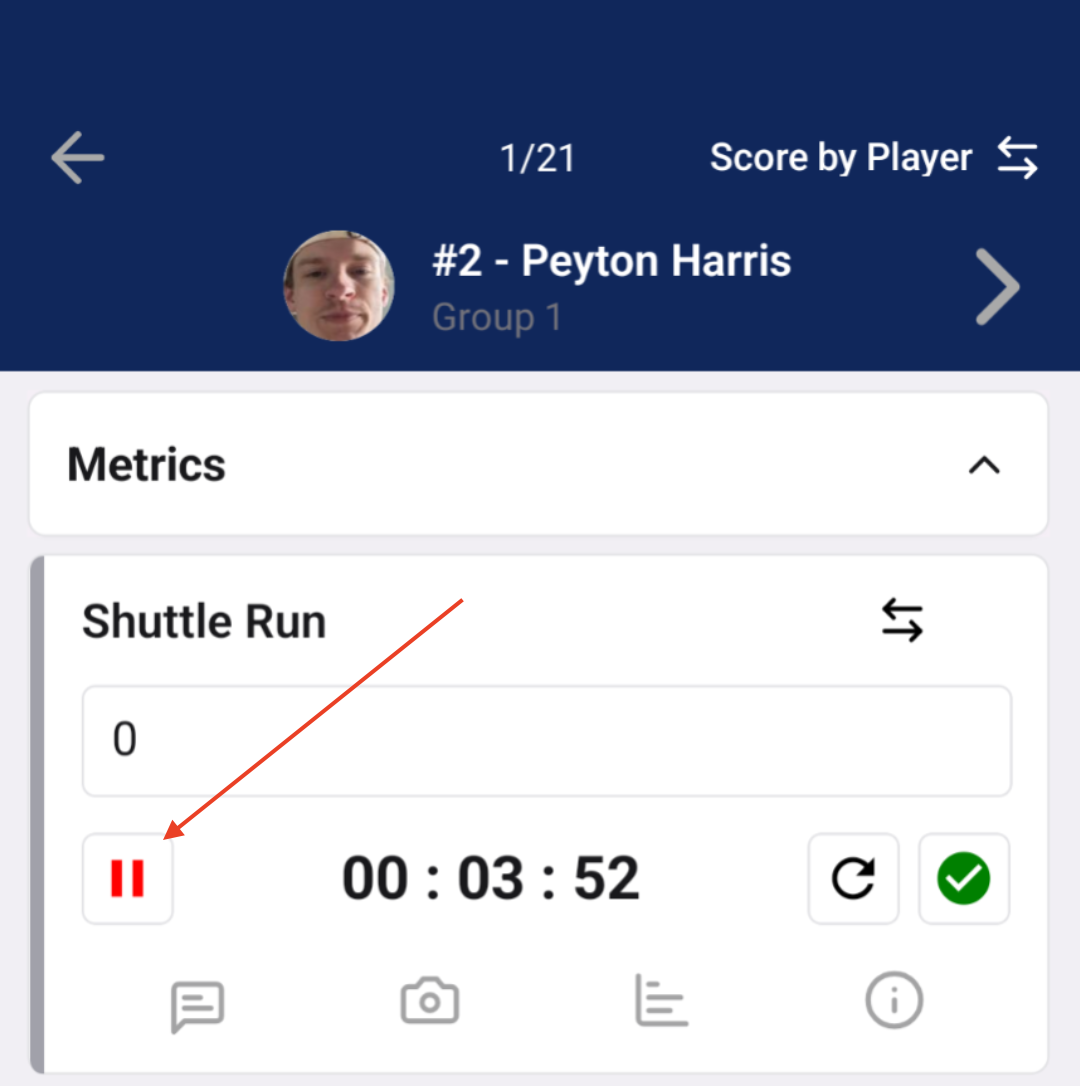
To save the score, click on the green check mark to the right. You can do this to stop the timer as well as record the score at the same time.
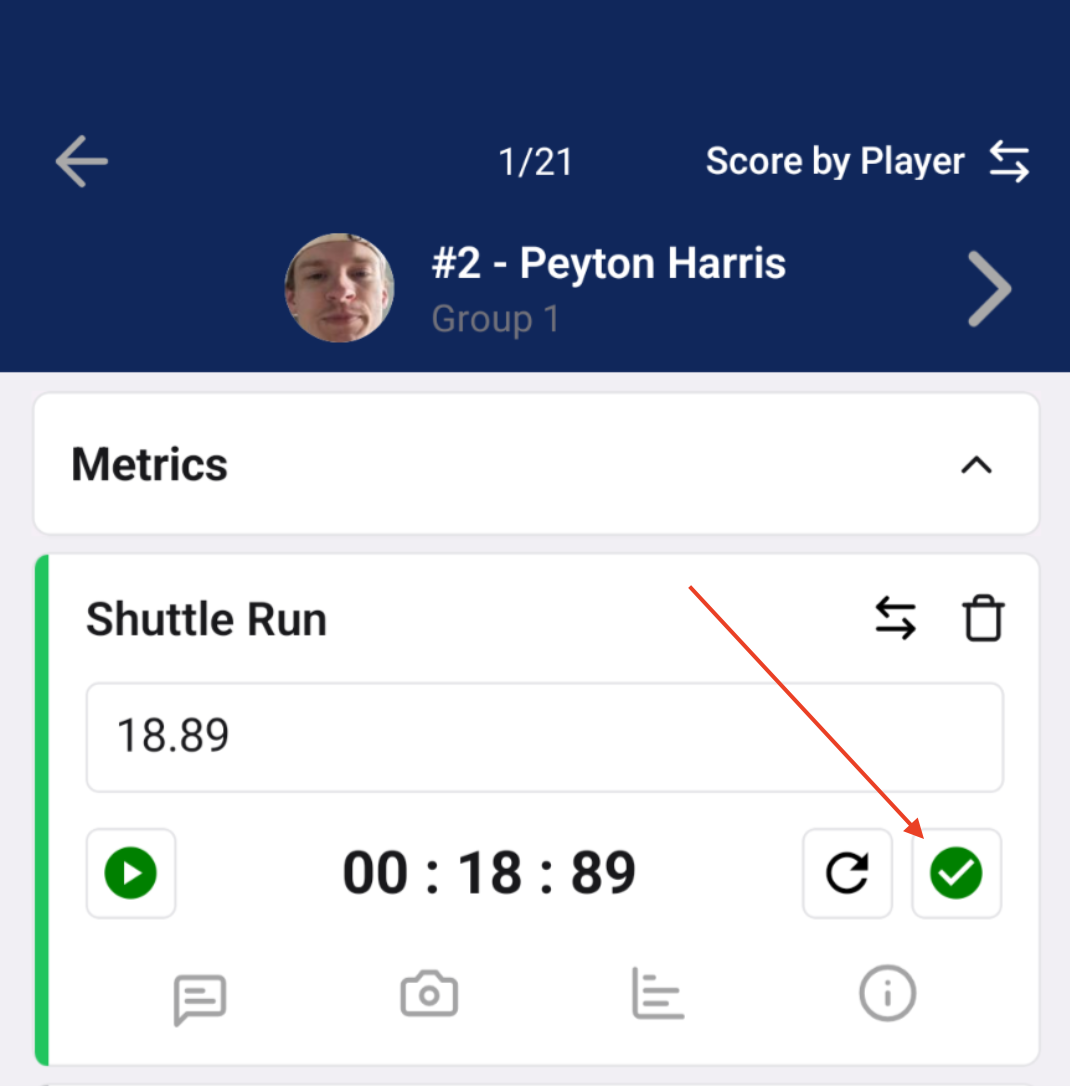
If you are using a personal stopwatch outside of the app, you are able to manually type in the score in the text box. To save the score, click out of the text box.
Scoring on a text field -
If you see a field that does not have a selection of score choices, it is likely a text field where you will input a specific number. Most commonly, these input styles are used on quantitative forms where you need to input a number (such as pitching speed, velocity, etc.).
To record a score, simply type the number into the text box. You are able to use negative numbers and also decimals to 2 points (ex: 2.75). Once you record the score, click out of the text box to save it.
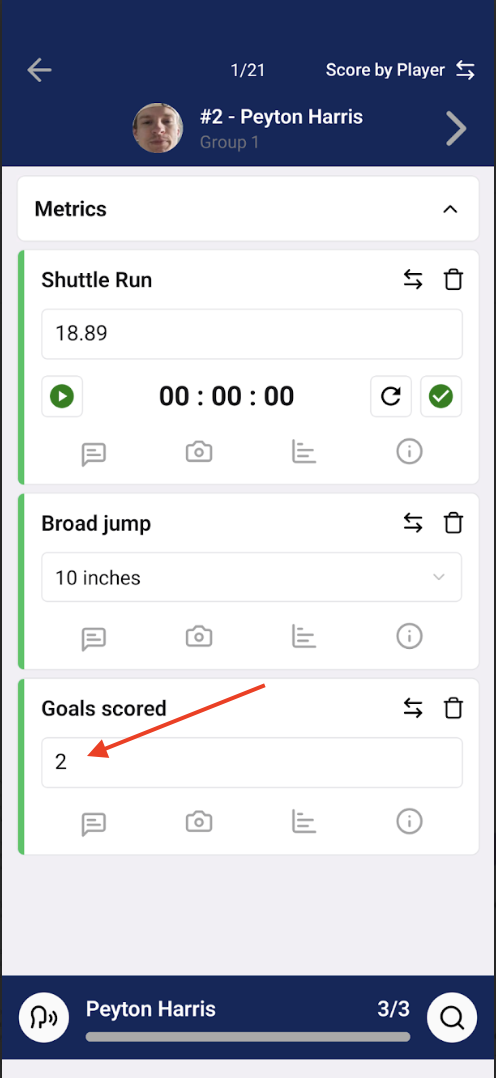
Reminder: You know your score has been saved when you see the vertical green line to the left of the criteria name. This is true for all input styles in the mobile app.